

Yoast SEO for Shopify: Settings and Account
When you access Yoast SEO via Apps, you will see Optimize, Settings, and Account. In this article, we’ll discuss what you can find under the Settings andA ccount tabs.
The Settings tab in Yoast SEO
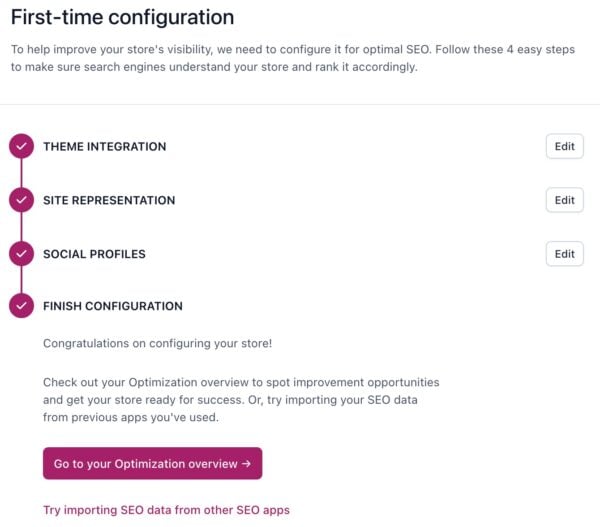
First-time configuration
When you open the Settings, you’ll see the First-time configuration first. If you haven’t completed the First-time configuration, you can complete the steps here. You’ll integrate Yoast SEO into your theme, set up your shop name and logo; and connect your social profiles.
General
With these settings, you can set some defaults for your entire site or content types. We advise you to use the Yoast SEO defaults, which will override the Shopify settings.
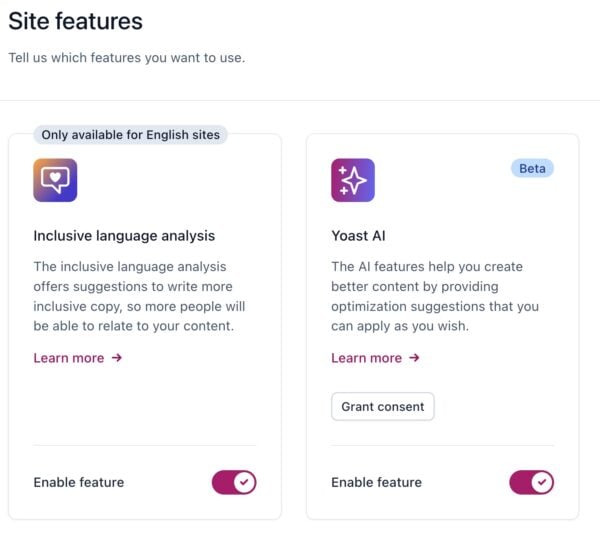
Site features
Under Site features, you can enable or disable certain site features, such as the inclusive language analysis and Yoast AI.
Site basics
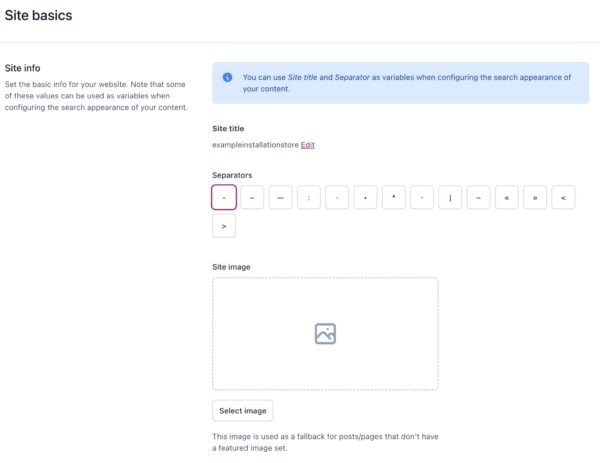
Under Site basics, you can choose how you your site appears in the search results. This acts as a default template for all your content types. You can override the default settings for indiviual content items in the Yoast SEO app.
The Site title and Separator: this sets default template for the SEO title of your site, which appears in search results. It acts as a backup if you don’t fill in an SEO title for individual pages.
The Site image. It acts as a backup if you don’t provide an image for individual pages.
Site representation
With these settings, you can give Yoast SEO the essential information to feed Google’s knowledge graph. For example, you can add your organization’s name, logo, and social profiles. You can also specify the site name and alternate site name of the website. As a result, you may get your site featured in a Google knowledge panel and increase your visibility in the search results.
Site connections
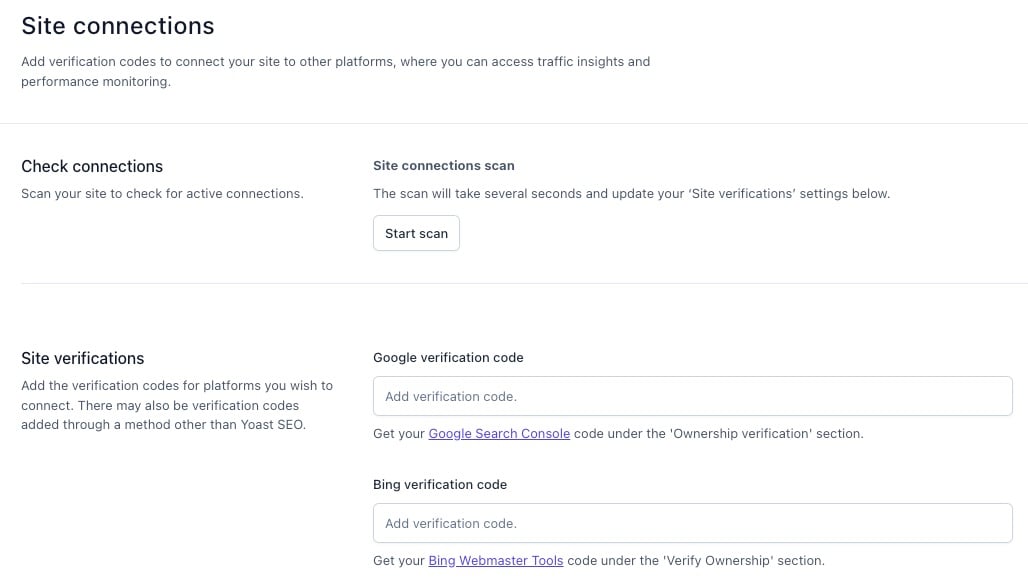
The site connections settings let you verify your site with different webmaster tools by clicking Start scan. With webmaster tools, you can see your site’s performance in search engine results and how to improve it.
Yoast SEO automatically adds a meta tag to your homepage to verify your ownership of the site: you can find verification instructions by following the links in the description. If you are unsure, refer to our documentation for guidance on website verification. Your website’s verification status can be confirmed without completing the menu options.
Integrations
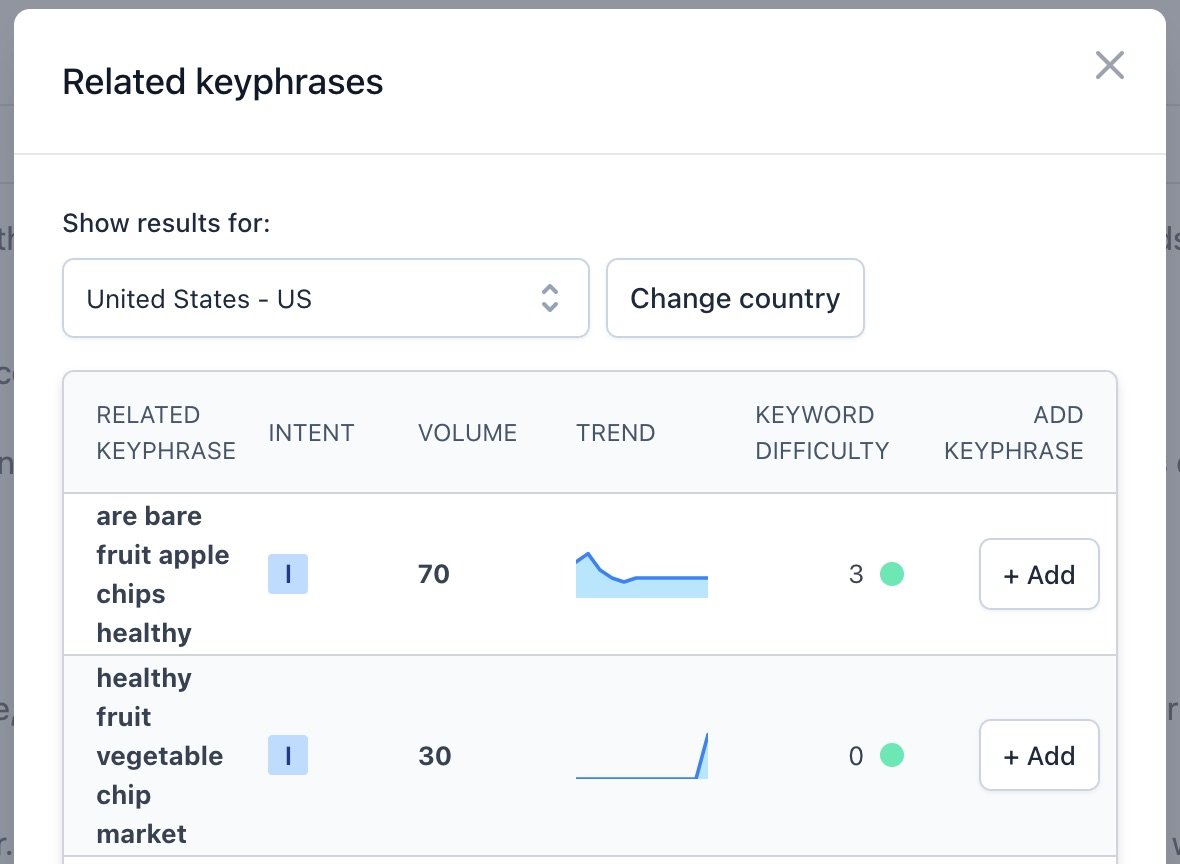
Yoast SEO for Shopify can also integrate with other apps. Currently, we have an integration with Semrush, the leading digital marketing platform. Activating this integration helps you do keyword research from inside the Yoast SEO app using Semrush data. Please note that the Semrush account creation link provided in this article is an affiliate offering a 14-day trial period instead of the regular 7-day trial Semrush provides.
Content types
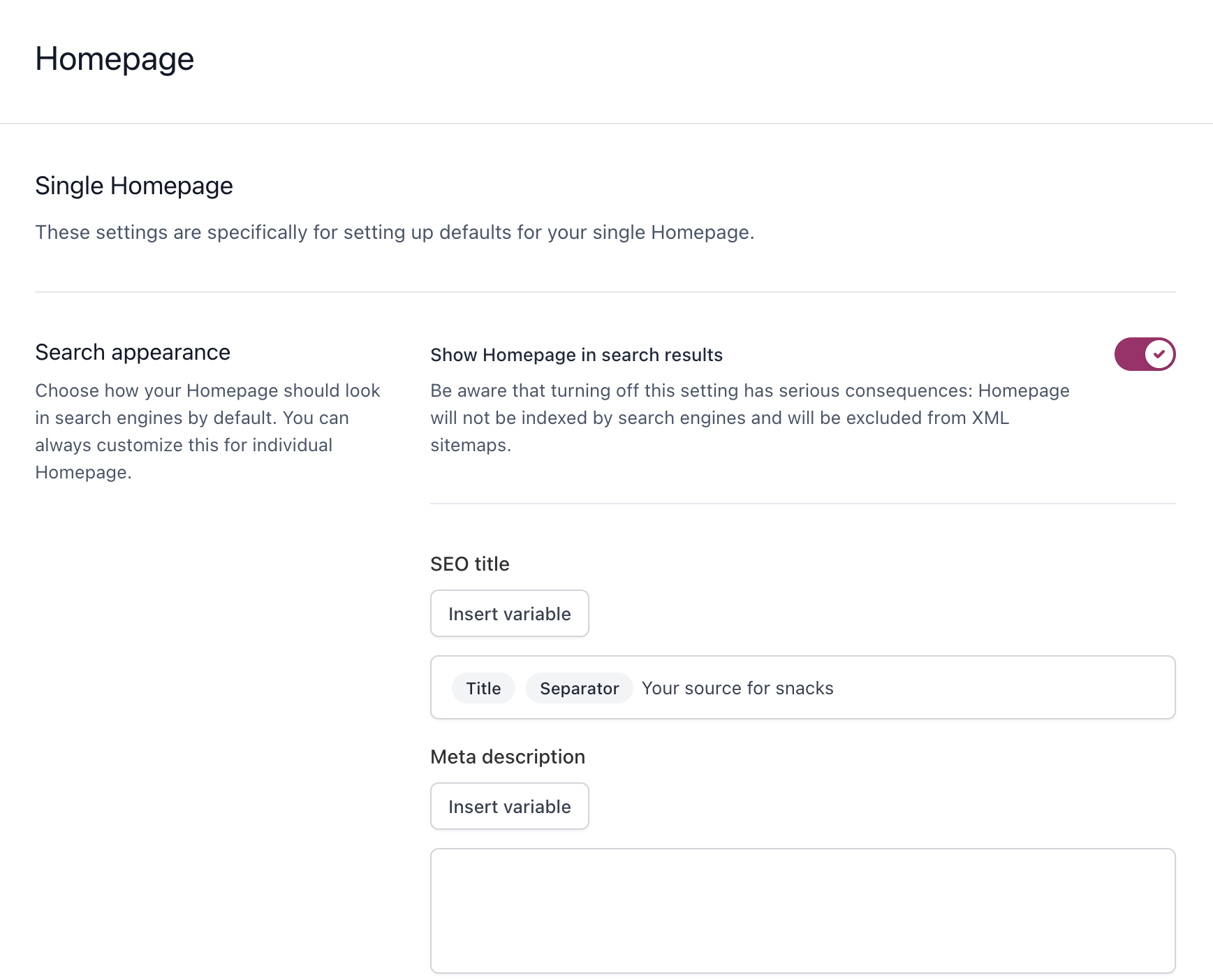
The content types settings tab lets you decide if and how the different content types, including your homepage, appear in the search results. In the content settings, you can set templates for SEO titles and meta descriptions for your content pages before doing individual optimization of the pages. In our documentation, you can find more on these Content types settings.
For each content type (e.g., product page, collection, blog), you can decide:
- the SEO title;
- the meta description;
- the schema settings (only for the homepage, blog posts, and pages);
- The search appearance of the archive pages.
Advanced settings in Yoast SEO
Schema output
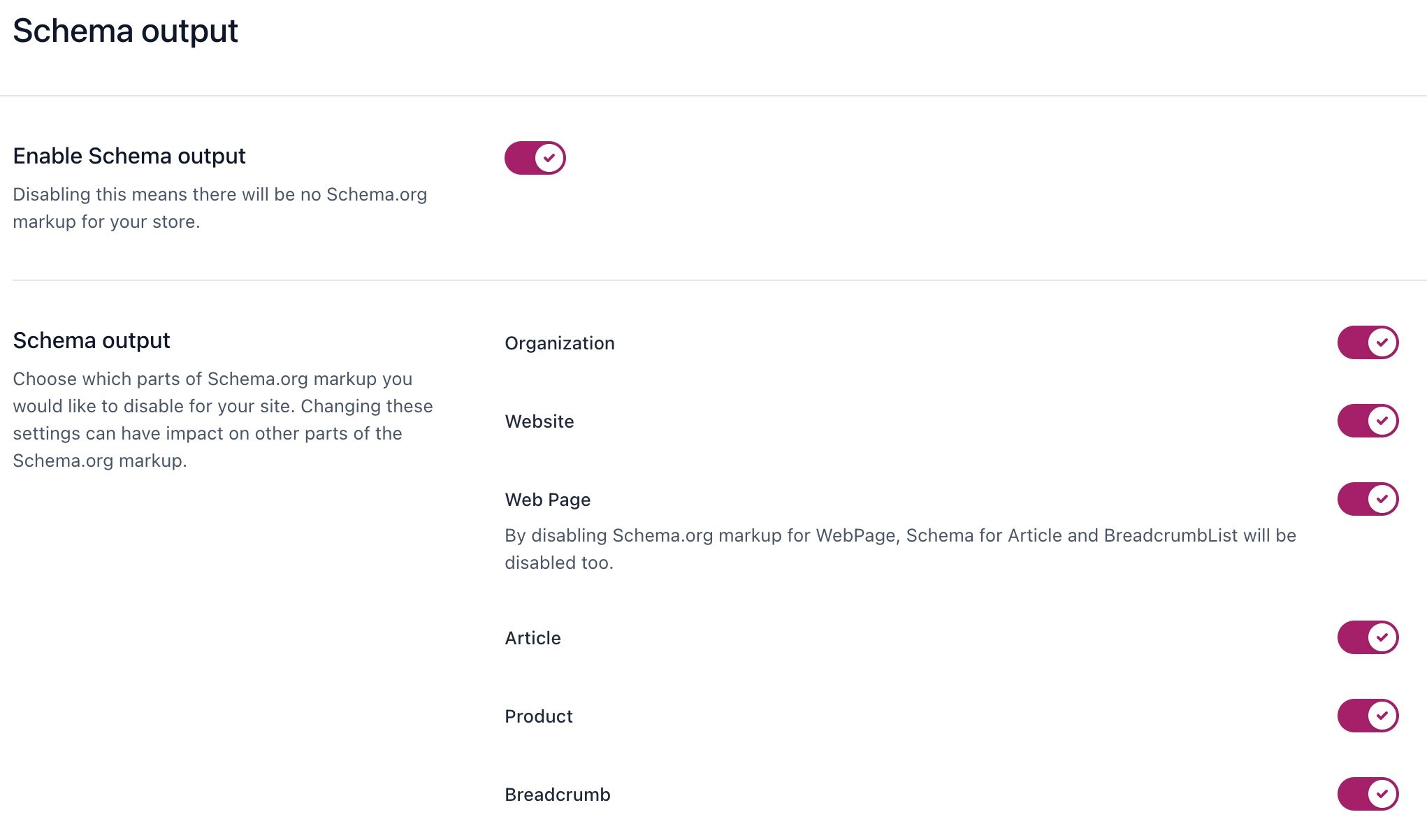
With these settings, you can choose which parts of Schema.org markup you want to disable for your site. Please note that changing Schema settings here can impact other parts of you Schema.org markup. We advise you to keep all the Schema toggles on, unless you use other apps that output the same Schema.
SEO data migration
With the SEO data migration in Yoast SEO, you can import your data from another SEO app to Yoast SEO. To import your data from another SEO app, you’ll need to export your data with a third-party app, transfer it to a Yoast SEO template and import it back into Yoast SEO. For a detailed explanation of this process, follow our guide on how to switch to Yoast SEO for Shopify.
Theme integration
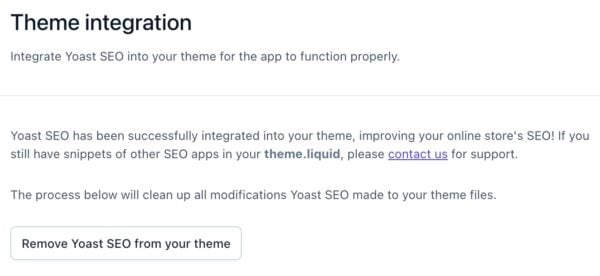
Under Theme integration, you can check whether Yoast SEO has succesfully been integrated, or remove Yoast SEO from your theme. Please note that removing Yoast SEO from your theme means Yoast SEO cannot work properly.
Account
Subscription
Under Subscription, you can find information on your Subscription details and Payment details. You can also modify your subscription by changing your billing type or applying a discount code.
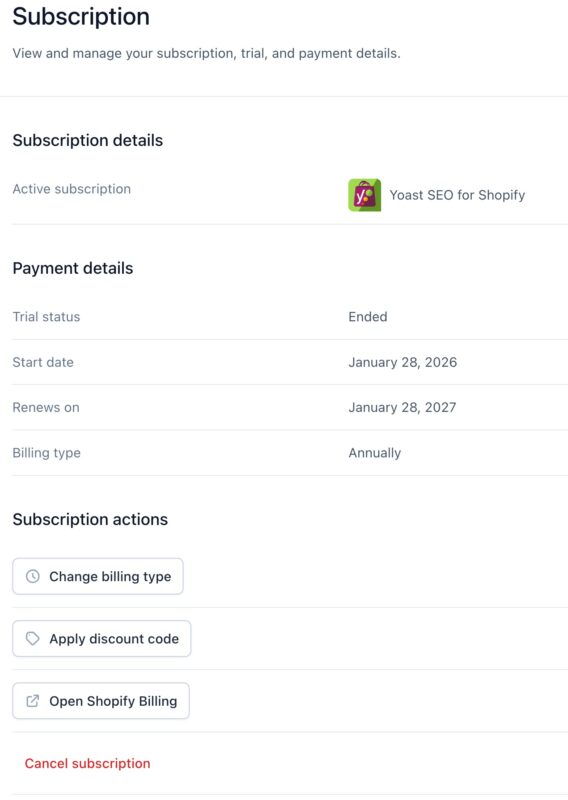
Cancel subscription
Under Cancel subscription, you can end and cancel your Yoast SEO for Shopify subscription. Please note that canceling the subscription is a two-step process: follow the instructions in our guide on How to uninstall Yoast SEO for Shopify.

Get more traffic to your Shopify store
Yoast SEO gives you the tools to make SEO easy and grow your store’s organic traffic and sales.
Did this article answer your question?
Still having issues?
Try searching for your issue below