

How to add Facebook’s Open Graph meta tags
Facebook’s Open Graph metadata allows users to share web pages on Facebook. If you add Open Graph meta tags to your posts and pages, Facebook will display a preview with images and an excerpt when someone shares a link to your site. In this article, we’ll explore how to add Open Graph meta tags to your site.
How to add Open Graph meta tags with Yoast SEO
The Yoast SEO plugin makes it very easy to add Facebook’s Open Graph meta tags. This feature is enabled by default.
- In your WordPress Dashboard, go to Yoast SEO
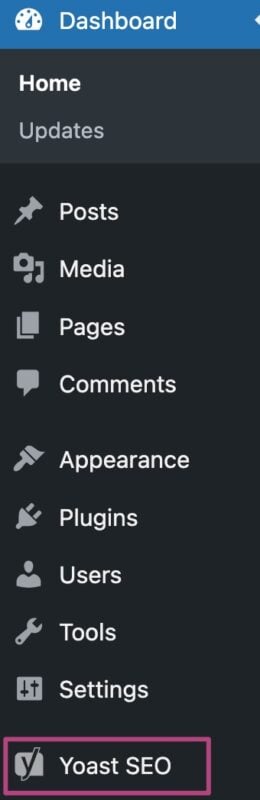
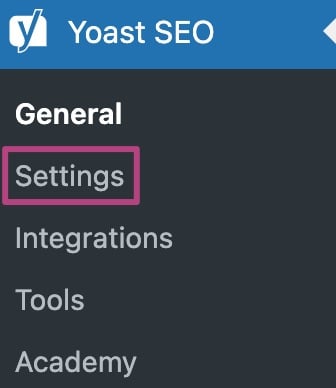
- Go to Settings
- Under Site features, go to Social sharing
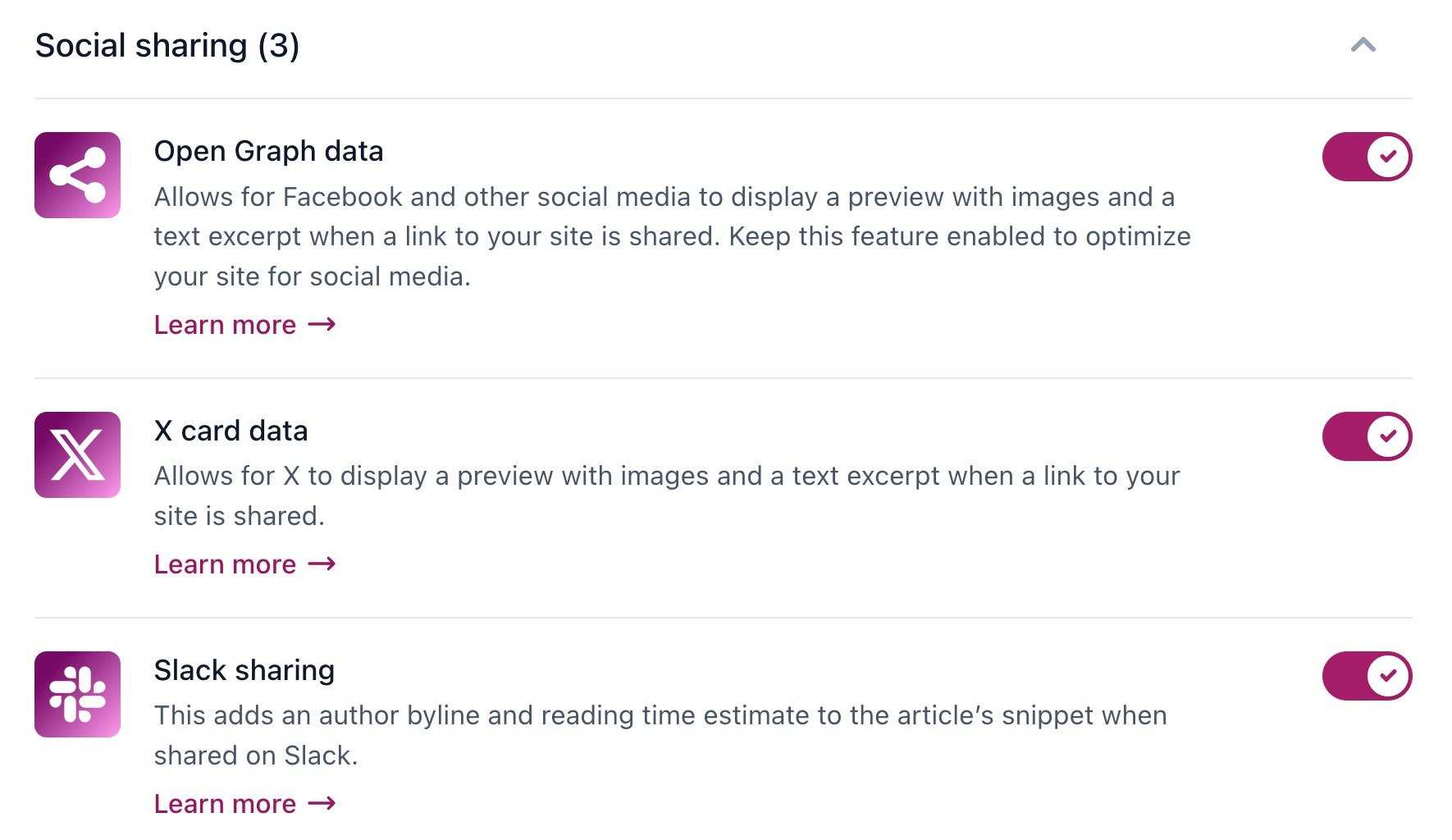
- Toggle the Open Graph data switch to On

- Click Save changes
How to edit Open Graph tags on your post/page
What are those article and time meta tags?
When you enable Open Graph, Yoast will output some specific meta tags below. Facebook uses these tags.
<meta property="article:published_time" content="date_time_goes_here" />
<meta property="article:modified_time" content="date_time_goes_here" />
<meta property="og:updated_time" content="date_time_goes_here" />
Note: If you are seeing dates in search engines, it is coming from elsewhere. Please use this guide: Date appears in search results.
I have a problem with Open Graph data
You may see the following warning:
The [XYZ Plugin Name] might cause issues when used in conjunction with Yoast SEO.
Both Yoast SEO and [XYZ Plugin Name] create OpenGraph output, which might make Facebook, X, LinkedIn and other social networks use the wrong texts and images when your pages are being shared.
This warning indicates that another plugin is also outputting Open Graph data. Duplicate Open Graph tags can cause social media sites to display incorrect titles, descriptions, or images.
If you want to use our plugin to generate Open Graph tags, please disable the Open Graph feature in the other plugin. Please contact the developer of the conflicting plugin for information on how to disable Open Graph in their plugin.
You do not have to deactivate the conflicting plugin if you can prevent it from outputting Open Graph tags. However, if you want to use the other plugin to generate Open Graph tags, please disable the Open Graph feature in our plugin.

Get Yoast SEO Premium
Drive more traffic to your site. Use AI to save time doing SEO tasks. Make SEO easier. And get 24/7 support.
Includes Local SEO, Video SEO & News SEO.
Did this article answer your question?
Still having issues?
Try searching for your issue below