

Yoast AI Generate for image alt text
Adding alt text to product images helps search engines and people using screen readers understand what an image shows. However, writing alt text for every image in a large WooCommerce catalog can take a lot of time.
With Yoast AI Generate for image alt text, you can generate alt text suggestions using your product data and the image itself. You review every suggestion before it saves, so you stay in control of the final result.
In this article, we’ll explain how to access the feature, generate and review alt text, and which image formats are supported.
What you need to get started?
To use AI Generate for image alt text, you need an active Yoast WooCommerce SEO subscription or a Yoast SEO AI+ subscription.
How to access the AI generate for alt text images
You can access with any of the following two ways:
From the Yoast SEO menu
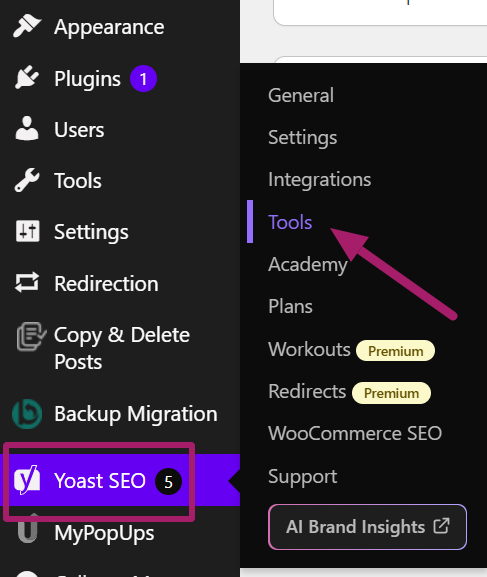
- Log in to your WordPress dashboard and click on the Yoast SEO → Tools option in the sidebar
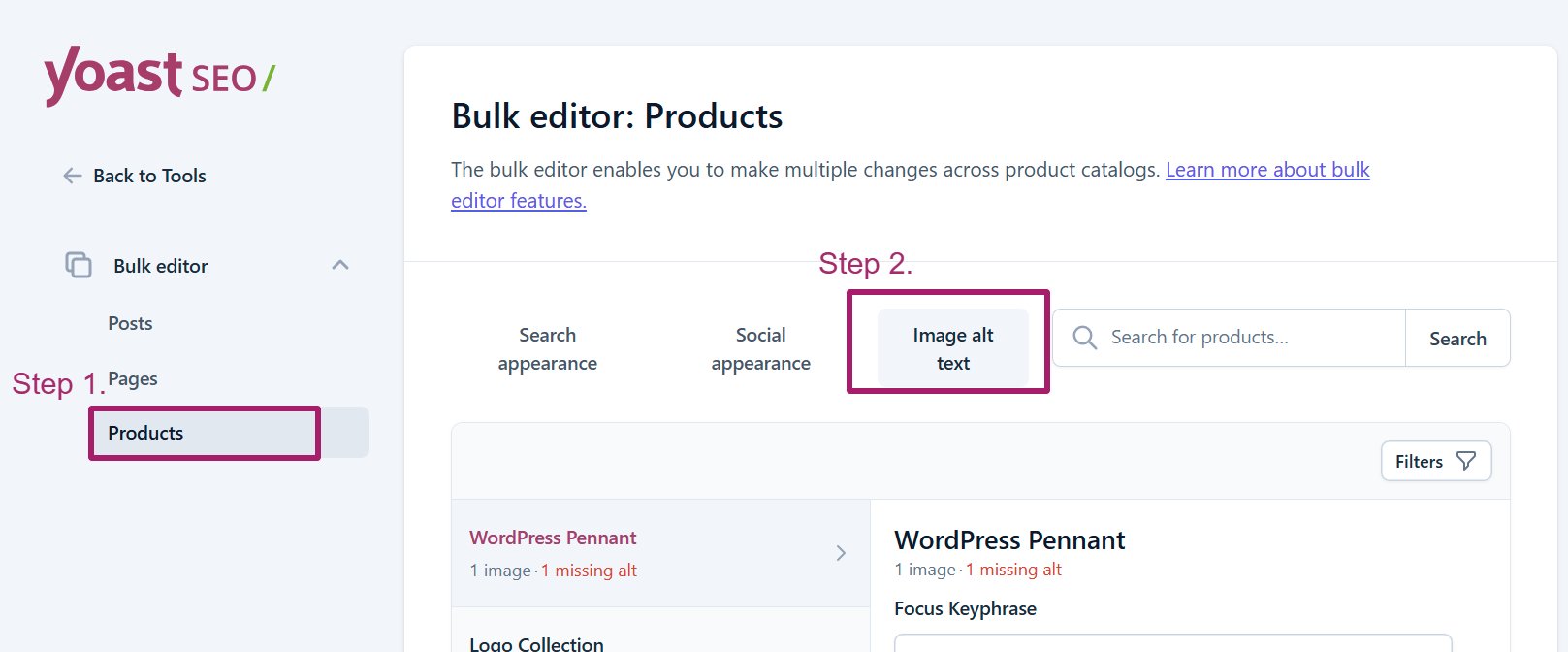
- Click on the Bulk editor option on the Tools – Yoast SEO page
- Next, on the Yoast SEO bulk editor screen choose Products and click on the Image alt text tab
From the Products page
Follow these steps to select the products to generate image alt text with AI:
- In your WordPress dashboard, go to Products
- Select the products for which you want to generate image alt text
- Open the Bulk actions dropdown and choose the Bulk edit option under Yoast SEO from the menu and click Apply
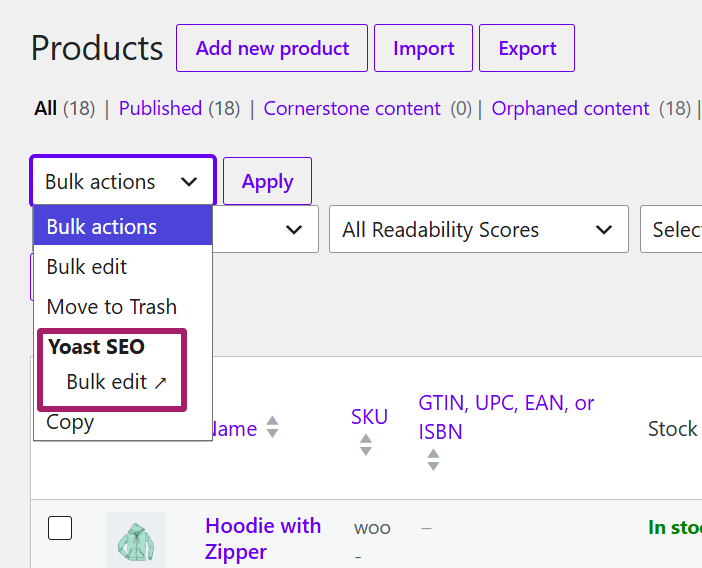
- You’ll be taken to the Yoast SEO Bulk Editor with your selected products
How to generate image alt text
Follow these steps to generate image alt text with AI:
- Go to the Image alt text tab
On the Yoast SEO bulk editor screen, go to the Image alt text tab for the products option
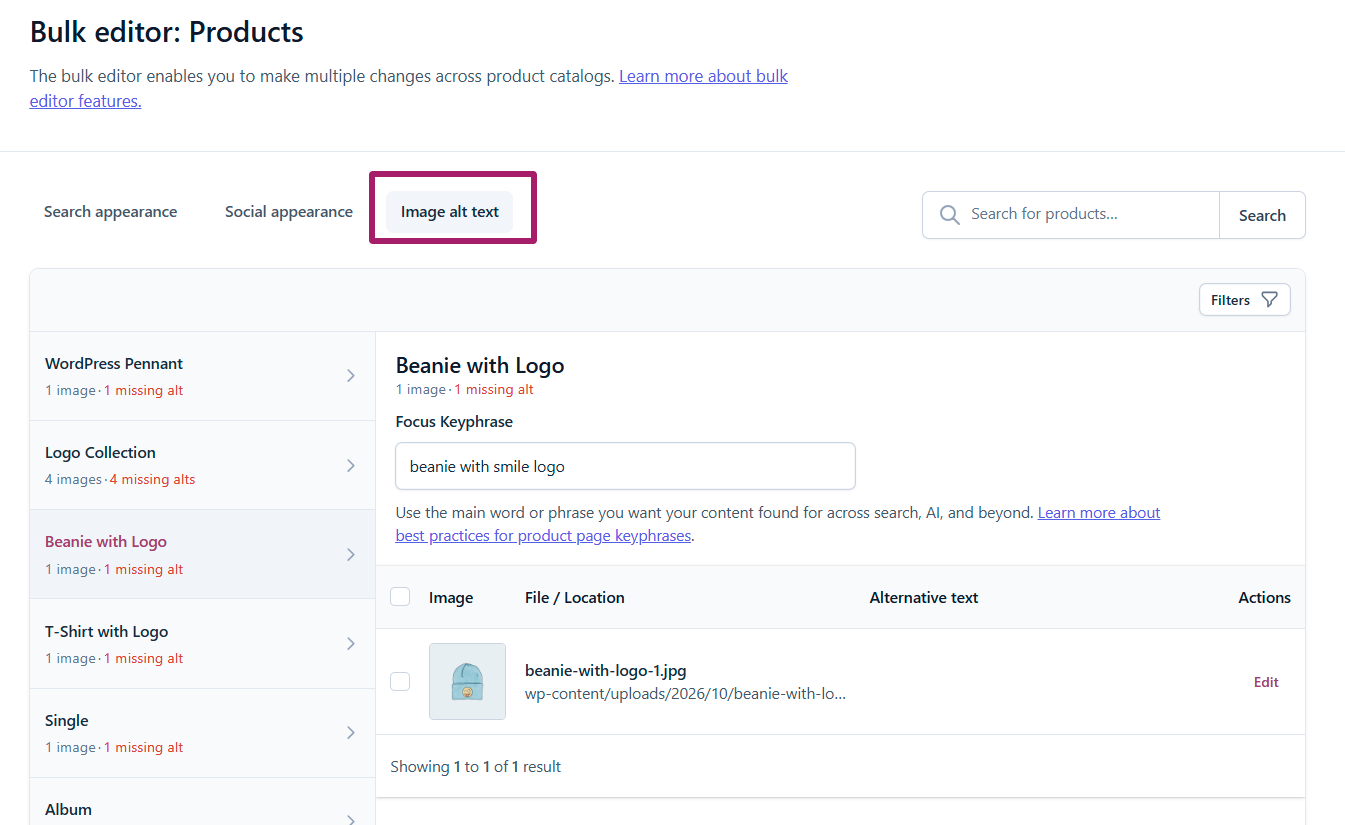
- Select product
Choose the product for which you want to generate the image alt text. Ensure that you have added a focus keyphrase for the selected product in the Focus Keyphrase feild.
- Select the images
Next, select the images for the chosen product for which you want to generate the alt text.
Click Generate image alt text to create suggestions based on the selected images and your product data.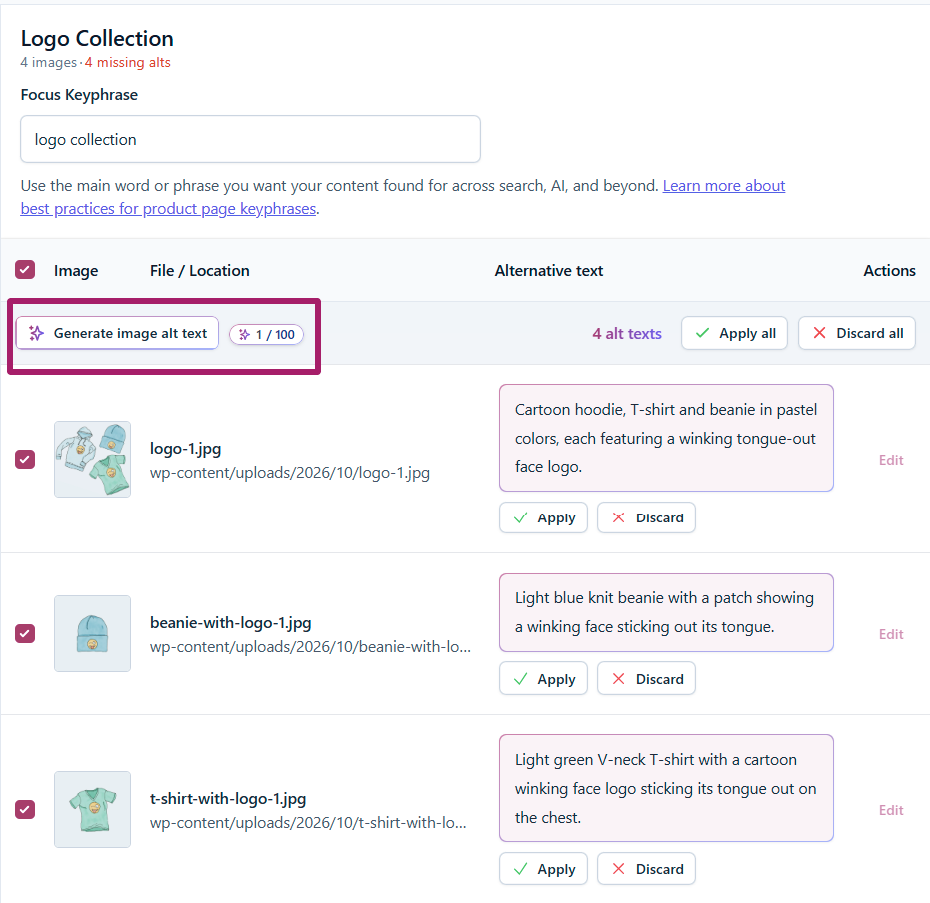
- Review and apply the suggestions
Check that each suggestion accurately describes its image and is appropriate for your product, then accept the suggestions you want to save or discard those you don’t.
Important: AI-generated alt text is a suggestion, not a replacement for your review. Always check that the description accurately reflects the image before applying it.
Generate image alt text FAQs
Yes. You need to set a focus keyphrase for the product before generating image alt text. The focus keyphrase helps Yoast AI Generate align the suggested alt text with the product’s main topic.
You can generate alt text for images in these formats:
PNG
JPEG
WebP
Non-animated GIF
Other formats, such as AVIF and SVG, aren’t supported for AI-generated alt text. You can still write and add alt text for these images manually.
To use this feature, you need an active Yoast WooCommerce SEO subscription or Yoast SEO AI+ subscription.
If you see a subscription notice in the Bulk Editor, check that your subscription is active. You may need to activate your subscription in MyYoast or purchase an eligible subscription.
Check how to install Yoast WooCommerce SEO for WordPress.
Yes, you can check this help article: How to use the AI Generate title, description, and image alt generator in WordPress.

Get Yoast WooCommerce SEO
Make your products stand out in the search results. Use AI to save time doing SEO tasks. Get extra SEO features for your WooCommerce store.
Includes Local SEO, Video SEO & News SEO.