

Local SEO: Locations custom post type
If you’re using Local SEO with multiple locations, you get a new custom post type. In your WordPress Dashboard, it’s called Locations; under the hood, it’s called wpseo_locations. This post type creates two types of pages: a custom post type archive page and single location pages. In a default theme, the custom post type archive would use the file archive.php, and the single location file would use single.php. This is often not ideal, in this aticle, we’ll explain how you can override this behavior.
The Custom Post Type Archive
To have your theme not use the archive.php file, you can create a file called archive-wpseo_locations.php. This file will need to be entered into your theme directory.
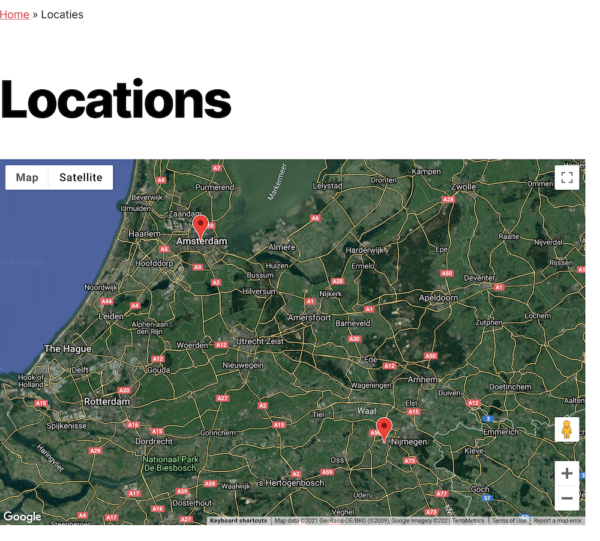
You could use this page, for instance, to show a map of all your locations. All your locations are expected to be shown at the /locations URL.


You can find a good example of what such a page should look like in this gist, based on the WordPress TwentyTwelve theme:
The single location page
In the same way, as you can create archive-wpseo_locations.php, you can also create single-wpseo_locations.php. The easiest fix here is often to just copy the page.php template into this file, which removes most of the comment stuff etc that single.php normally holds.
Locations archive page shows recent posts, not locations
If your /locations/ page doesn’t show your locations but instead shows your recent posts, your themes archive.php probably queries directly for the Posts post type instead of checking for which post type it should query. You can either fix this in the theme, or you could create a specific template file for your locations page.
My location page isn’t appearing in my embedded Google Map
Location pages are pages that are created by the Local SEO plugin. The WordPress defaults permit these to have different kinds of statuses:
- Published
- Draft
- Pending Review
- Private
- Password Protected
Local SEO allows you to embed a Google Map via a shortcode or a widget to show your location. Changing the page’s status affects how the map appears for you and your visitors, as described below.
| Status | Does it show for administrators, authors, or editors? | Does it show for subscribers, users not logged in or visitors? |
| Published/ Public | Yes | Yes |
| Draft | Yes | No |
| Pending Review | No | No |
| Private | No | No |
| Password Protected | Yes | Yes |

Get Yoast SEO Premium
Drive more traffic to your site. Use AI to save time doing SEO tasks. Make SEO easier. And get 24/7 support.
Includes Local SEO, Video SEO & News SEO.
Did this article answer your question?
Still having issues?
Try searching for your issue below