

How to set up and use Yoast SEO Abilities
Yoast SEO Abilities let compatible AI tools work with your site’s Yoast SEO data. You can use an AI tool to retrieve SEO information for your posts and update supported technical SEO settings without switching back and forth between your AI tool and the WordPress admin.
This article explains what you need to get started, how to connect an AI tool to your WordPress site, and how to use Yoast SEO Abilities to read and update your posts’ SEO data.
What can you do with Yoast SEO Abilities?
Yoast SEO Abilities let your AI tool work with the SEO data of individual posts. You can use them to read SEO data and update selected technical SEO settings without opening the WordPress admin.
Read your posts’ SEO data
The read Ability can retrieve SEO information for your posts, including:
- SEO titles and meta descriptions
- Focus keyphrases
- Canonical URLs
- Robots settings
- Schema types
- Open Graph and X/Twitter data
- SEO, readability, and inclusive language scores
You can identify a post by its post ID or permalink. You can also search for posts by title when retrieving SEO data.
Update your posts’ SEO settings
The update Ability lets you change selected technical SEO settings for an individual post. These include:
- Canonical URL
- Cornerstone content
- Robots settings, such as
noindexandnofollow - Schema page type
- Schema article type
The update Ability only changes the fields you provide. Other SEO data remains unchanged.
Want to build your own integration? The Yoast SEO Abilities – Post’s SEO data developer documentation explains the available Abilities, supported fields, inputs, outputs, and how to work with them.
What you need to get started
Before you can use Yoast SEO Abilities, make sure you have:
- A WordPress site with Yoast SEO installed and activated.
- An AI tool that can connect to your WordPress site and use Abilities. Yoast SEO Abilities are designed to work with AI clients that support the WordPress Abilities API and MCP.
- The necessary permissions on your WordPress site. Your WordPress user must have permission to access the advanced SEO settings and edit the posts you want to work with.
Connect your AI tool to your WordPress site
The exact steps depend on the AI tool you’re using. In general, you’ll need to:
- Open your AI tool’s connection settings
Open the settings or integrations area of your AI tool and look for the option to add a new connection, plugin, or MCP server.
Your AI tool must support connecting to your WordPress site through the WordPress Abilities API.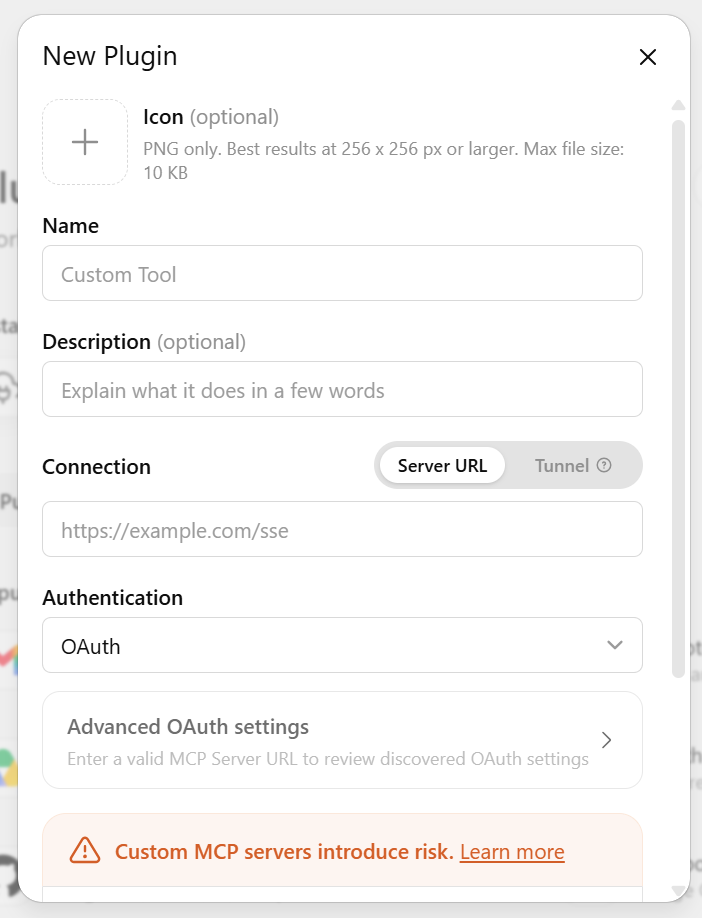
- Add your WordPress site
Enter the connection details for your WordPress site as requested by your AI tool. You may need to provide your site’s URL and authorize the AI tool to access your site.
The connection needs to give the AI tool access to the Abilities exposed by your WordPress site. Yoast SEO registers its post SEO data Abilities through the WordPress Abilities API. - Authorize the connection
Follow the prompts to authorize your AI tool to access your WordPress site.
The authorization is important because the AI tool needs permission to perform actions on your site. The exact authorization screen will depend on the AI tool and connection method.
In the test setup, the AI tool was authorized to perform actions on the WordPress site prior to the connection test.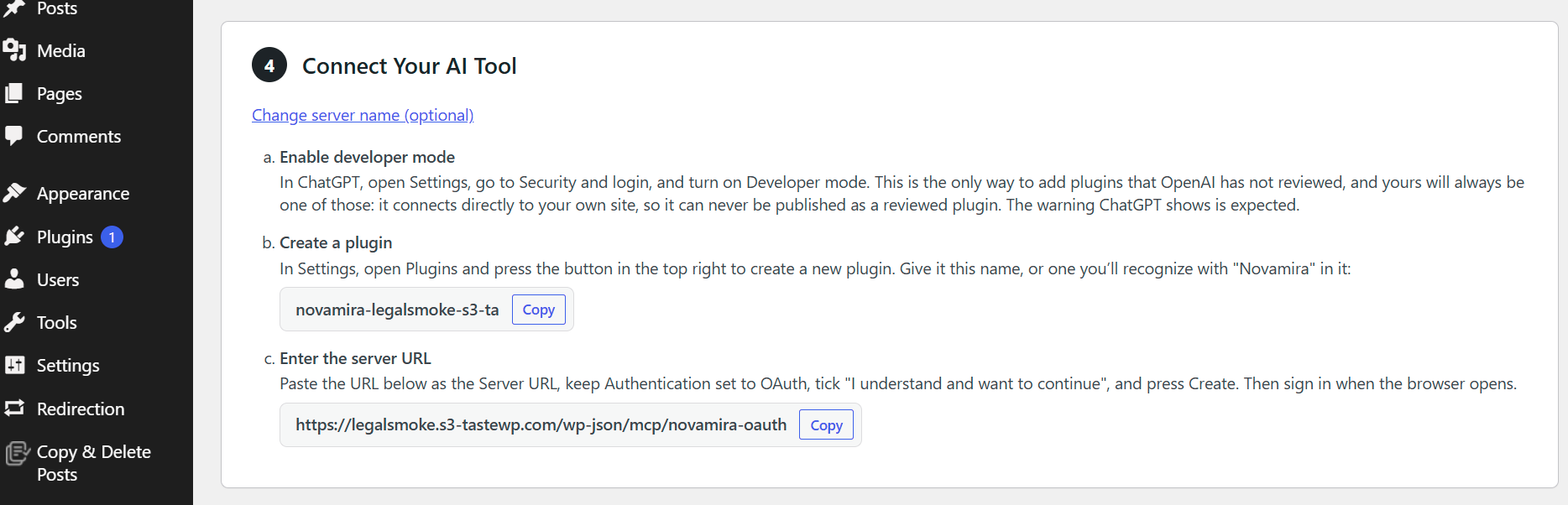
- Check that your site is connected
Open a new conversation or session in your AI tool and ask it to verify the connection to your WordPress site.
For example: Hey ChatGPT, are you connected to the https://fixeddesk.s2-tastewp.com/ website?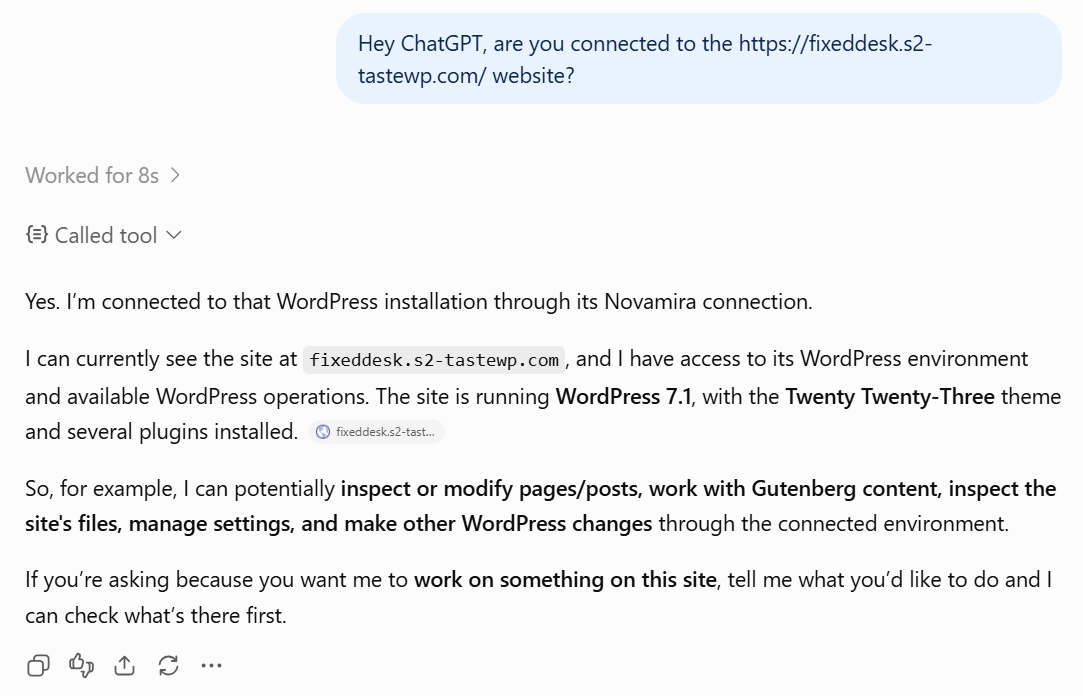
A note about AI tool permissions
Connecting an AI tool to your WordPress site gives it access to the actions you authorize. Make sure you understand what permissions you’re granting before you approve the connection.
Yoast SEO also applies WordPress permissions to its Abilities. For the post SEO data Abilities, users need the appropriate advanced metadata capability, and access is further restricted to posts they are allowed to edit.

Get Yoast SEO Premium
Drive more traffic to your site. Use AI to save time doing SEO tasks. Make SEO easier. And get 24/7 support.
Includes Local SEO, Video SEO & News SEO.